


This is one of the most common workflows used when you need to link the consent of a logged in user to a third-party system such as a CRM or a marketing platform.
The Secure Privacy REST API allows you to assign a custom user ID (e.g. email address) to a consent. This is useful for linking a data subject from Secure Privacy to a user in your system.
To link the same user’s consents across several devices, such as your website and your mobile app, see Cross-Device Tracking.
Assigning a Custom User ID to a Consent Record
Section titled “Assigning a Custom User ID to a Consent Record”To assign a custom user ID to a consent record after a user has logged into your system, you can use the following PATCH endpoint. This is typically done through a callback function that’s triggered after successful user authentication.
Endpoint
Section titled “Endpoint”PATCH /api/consent/customuserid/:clientIdRequest Body
Section titled “Request Body”{ "DomainId": "string", "CustomUserId": "string"}Example Implementation
Section titled “Example Implementation”The request needs your API key, so it must be sent from your backend. Your website reads the client ID after the user logs in and passes it to your own backend, which then calls Secure Privacy.
1. In the browser, send the client ID to your backend after login:
// The Secure Privacy script will set a localStorage item called// s_e_c_u_r_e_k_e_y which is the unique ID associated with the clientconst clientId = localStorage.getItem("s_e_c_u_r_e_k_e_y");
// The key is only set once the Secure Privacy script has loaded on this browser.// If it is missing, there is no consent to link yet.if (clientId) {  // Your own backend route, not a Secure Privacy endpoint  await fetch("/api/consent-link", {    method: "POST",    headers: { "Content-Type": "application/json" },    body: JSON.stringify({ clientId }),  });}
2. On your backend, assign the custom user ID:
// This is the domain ID of website and can be found in your Secure Privacy script tagconst domainId = "YOUR_DOMAIN_ID";
// Your own route, called by the website after loginapp.post("/api/consent-link", requireLogin, async (req, res) => {  const { clientId } = req.body;
  // This is the custom user ID you want to assign to the user - here we use an email address  // Normalise emails so the same person always gets the same custom user ID  const customUserId = req.user.email.trim().toLowerCase();
  try {    const response = await fetch(      `https://api-prod.secureprivacy.ai/api/consent/customuserid/${encodeURIComponent(clientId)}`,      {        method: "PATCH",        headers: {          "Content-Type": "application/json",          Accept: "application/json",          Authorization: `Bearer ${process.env.SECURE_PRIVACY_API_KEY}`,        },        body: JSON.stringify({          DomainId: domainId,          CustomUserId: customUserId,        }),      }    );
    if (response.status === 404) {      // No consent recorded for this client ID yet - the user has not      // answered the banner. Try again after they give consent or on their next login.      return res.sendStatus(202);    }
    if (!response.ok) {      throw new Error("Failed to update consent record");    }
    const result = await response.json();    console.log("Successfully linked consent to user:", result);    res.sendStatus(204);  } catch (error) {    console.error("Error linking consent:", error);    res.sendStatus(502);  }});
Response
Section titled “Response”A successful response will return a 200 OK status code with the updated consent record:
{ "ClientId": "string", "CustomUserId": "string", "PageURL": "string", "Consents": [ { "ComplianceType": "string", "ComplianceTypeID": "string", "ConsentGiven": "boolean", "PluginPreferences": "string", "ComplianceLawType": "string" } ], "BrowserSignals": { "GPC": "boolean", "DNT": "boolean" }}BrowserSignals is only included when they were captured with the consent.
Error Responses
Section titled “Error Responses”| Status | Meaning |
|---|---|
403 Forbidden |
The DomainId does not belong to the account that owns the API key. |
404 Not Found |
No consent exists for this client ID yet, usually because the user has not answered the banner. Try again after they give consent or on their next login. |
How the Custom User ID Behaves
Section titled “How the Custom User ID Behaves”- Calling the endpoint again replaces the custom user ID. The record stores one custom user ID, and the latest request wins.
- The custom user ID is kept when the user changes their choices. If the user later updates their consent in the banner, the record keeps its custom user ID.
- You can read it back.
GET /api/consent/customuserid/:clientIdwith yourDomainIdreturns the same record, includingCustomUserId. See the Web Consent API.
Choosing a Custom User ID
Section titled “Choosing a Custom User ID”- Remember that an email address is personal data (PII). Using one means Secure Privacy stores that email with the consent record. If you would rather not share it, use an internal account or customer ID instead.
- If you use an email address, normalise it by trimming whitespace and lowercasing it before every request.
[email protected]and[email protected]are stored as two different custom user IDs. - Make IDs distinct from one another. Searching by custom user ID matches every ID that starts with the value you enter, ignoring case, so
user_12also findsuser_123.
Best Practices
Section titled “Best Practices”- Link the consent in your login flow, and again on later logins. The client ID changes if the user clears their browser storage or switches browser.
- Handle
404 Not Foundby trying again later, rather than treating it as a failure. - Set the custom user ID on your backend from the logged-in session, not from a value sent by the browser.
- Keep your API key on your backend and never expose it in client-side code.
View your Consents in the Secure Privacy Platform
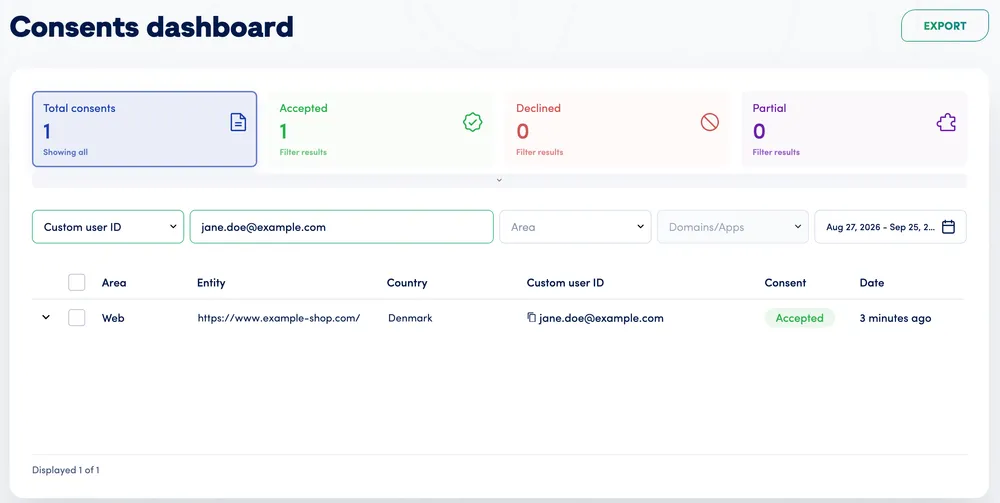
Section titled “View your Consents in the Secure Privacy Platform”To find a linked consent, use either of these:
- Consents dashboard: select Consents in the main navigation. This lists web, mobile and TV consents together.
- A single domain: open the domain, then go to Reports –> Consents.
On either page, choose Custom user ID in Filter field and enter the custom user ID.
Next Steps
Section titled “Next Steps”- Find a user’s consents with the API:
GET /api/consents?DomainId=…&CustomUserId=…returns every consent linked to that custom user ID. See the Web Consent API. - Link one user across devices: Cross-Device Tracking shows how to link web and mobile consents to the same custom user ID.
- Sync consents to a CRM: the Salesforce CRM integration uses the custom user ID to match consents to contacts.